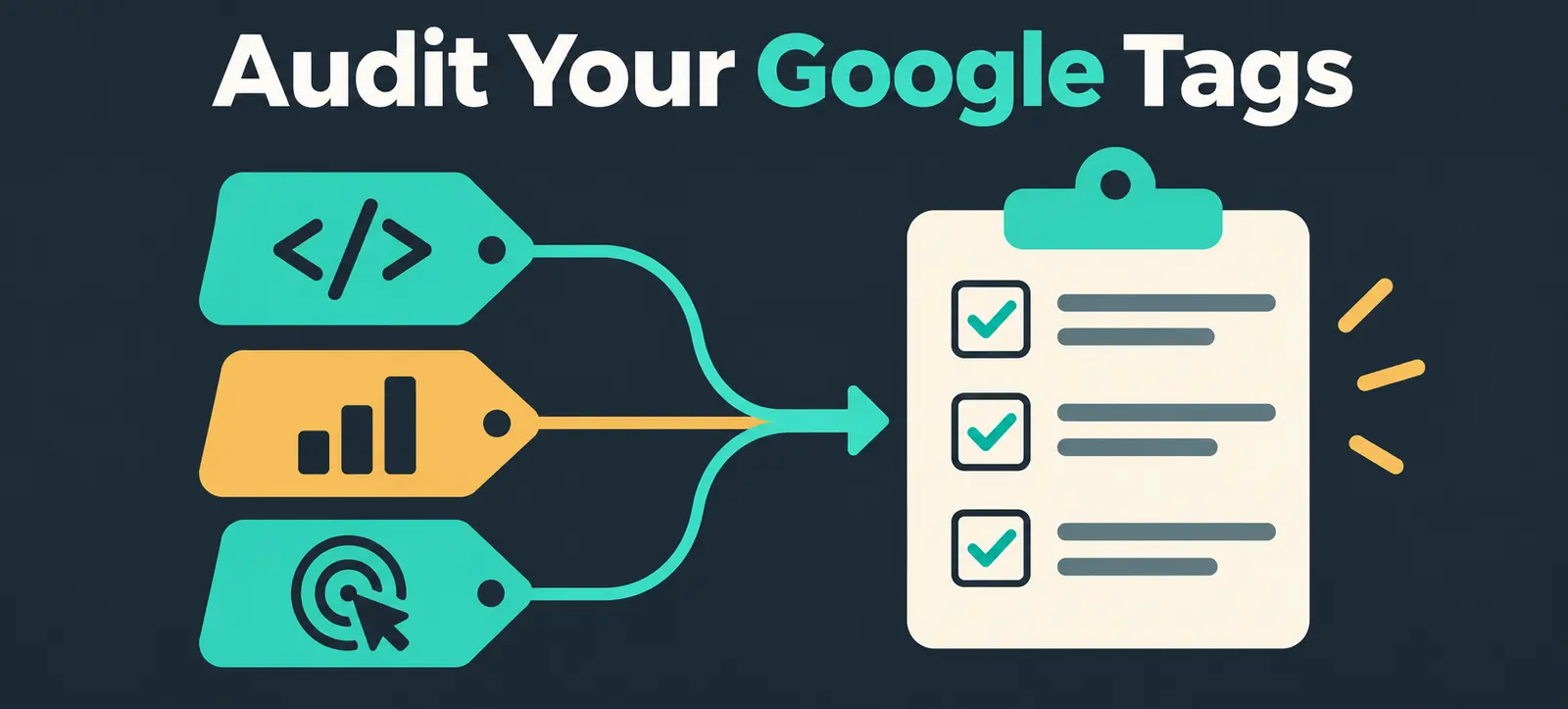
Google Tag Manager unification brings container capabilities to the Google tag. Google’s November 17 release notes say each Google tag becomes a Tag Manager container while existing in-page tag behavior is preserved. Websites that use the Google tag on its own gain access to tools such as debugging and version control. Google points to January 2027 for the upgrade of unsupported installations and advises those sites to adjust their setup ahead of time. Google Tag Manager release notes.
If you own tracking for a website, use the transition to check which tags produce your numbers and who can change them. Begin with a short set of tests you can repeat before and after any change. Include the paths that matter to the business, such as purchases, lead forms or account registrations.
Inventory the live installation
Open representative pages as an anonymous visitor and record the tags and containers that actually load. Check the homepage, a paid landing page, a form and the confirmation or order page. Include a separate checkout domain or an embedded form if your customer journey uses one. Note which parts come from the website template, a plugin, a consent tool or a Tag Manager container.
For each important event, record its name, business meaning, destination and owner. A page can send data to Analytics and Google Ads for legitimate reasons. The inventory helps you distinguish those expected sends from two tags reporting the same action to the same destination. Use your existing tracking plan to identify which conversions affect bidding or management reports. Kayaar’s Google Ads measurement stack guide.
Save a baseline your team can reproduce
Record one baseline test per critical journey. Use a distinct test transaction or lead ID and identify the test in your records. Note the browser, consent choice, timestamps and expected tags. Capture the Tag Assistant timeline and verify whether the destination reports the event as expected. Allow for processing time in destination reports.
Repeat each journey under the consent states your implementation supports. Compare actual tag behavior with your approved consent design. Include ways a visitor might return to the confirmation page, reload it or hit Back. Test a fresh visit as well as a returning one if consent choices persist across sessions.
Tag Manager transition test plan
What to check
Expected outcome
Container and destination IDs
Every intended destination receives its assigned events
Initialization and consent
Tag behavior matches the approved consent and trigger design
Conversion count and values
One qualifying action sends the intended event and parameters
Debugging access
Reviewers can inspect the correct container
Rollback
The team can restore the relevant container or website version
Review triggers and destination tags
Google says new deployment snippets omit the gtag config command and recommends setting initialization behavior in Tag Manager. The release notes also describe retaining a wait for the config command where a legacy setup depends on it. Review the conditions that your live tags rely on before changing snippets. Match the observed initialization sequence to the design and trace when destination tags receive the values they need.
Pay attention to broad custom-event rules. Google’s October notes say config commands can appear in the data layer as gtag.config events and may trigger wildcard listeners. In preview, look for unexpected early sends or a second conversion triggered by the same interaction. Narrow a rule only after you can identify the event it should match. Save the before and after timelines with the change request.
Verify access before the release
Tag Assistant data access follows the applicable Tag Manager container permissions as Google tags transition. Check that the people who diagnose issues can see the relevant container and that release owners have appropriate permissions. Ask each owner to try the workflow using their own account. Confirm who can approve and publish changes, and avoid sharing a login across teams. Google tag management guidance.
Document which team owns the site template, consent tool and downstream conversion settings. If one event goes into several reporting systems, name a person to reconcile discrepancies. For example, a conversion may reach Ads successfully even if a follow-up import of qualified leads fails. Test the handoff you actually use for optimisation. Kayaar’s lead quality review.
Release narrowly and compare results
For a checkout test, record the test order value and currency alongside the transaction ID. Compare all three fields with the values received by each destination so a successful event count cannot hide incorrect revenue reporting.
Use a staging site or approved test workspace to rehearse any configuration change. Keep unrelated tag edits out of the release so a regression is easy to trace. Record the existing container version, the website revision if relevant and who can restore either. Preview the intended version and rerun the baseline script. If the team cannot explain a change in the count or parameters, investigate before publishing.
After release, repeat the same controlled tests on production. Check reports again once data has had time to arrive. Compare conversion volume with a recent equivalent period and annotate changes in spend, traffic or promotion. An unusual shift can prompt investigation, while a controlled test can show whether the event path is functioning. Kayaar’s measurement governance checklist.
Where imported data contributes to reporting, test one identifiable record from collection to destination. Confirm which system owns the record and whether it is expected to arrive immediately or in a later batch. Share the result with the person who relies on the report. Kayaar’s Data Manager readiness audit.
Close the release when the approved triggers, destinations and conversion counts behave as expected for each tested journey. Keep the test IDs and results with the deployment record so the next reviewer can reproduce your checks. Contact Kayaar.
FAQs
Do I have to replace my Google tag snippet immediately?
Use the installation guidance for your setup. Google says the upgrade itself preserves existing in-page behavior and recommends addressing unsupported installations ahead of their January 2027 upgrade.
What should I check in Tag Assistant?
Check the loaded IDs, the event timeline, the triggers that ran, the destinations that received events and the consent state for each test.
How do I find duplicate conversion events?
Perform one controlled conversion and compare the sends for that action. Check the destination, event name and transaction identifier before deciding whether two sends are duplicates.
Who needs access after unification?
Give reviewers the access needed to inspect and debug the container. Keep publish permissions with the staff responsible for approving and deploying changes.
What if the transition causes a regression?
Capture the failing test and isolate the change. Restore the relevant known-good container version or site code, then repeat the same test.